![proternio-logo-dark-transbkg.png]](https://support.protern.io/hs-fs/hubfs/proternio-logo-dark-transbkg.png?height=40&name=proternio-logo-dark-transbkg.png)
- Open Protern Sync on your computer to mobile device
- If you are on a computer, plug in your sensor via USB. If you are using a mobile device, turn on the sensor
- You will see the sensor appear on your list of sensors. If you had assigned previously to another athlete, you will see their name listed.
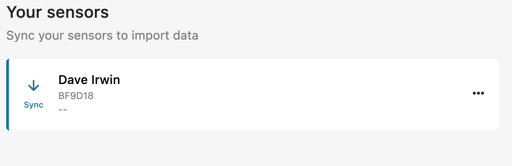
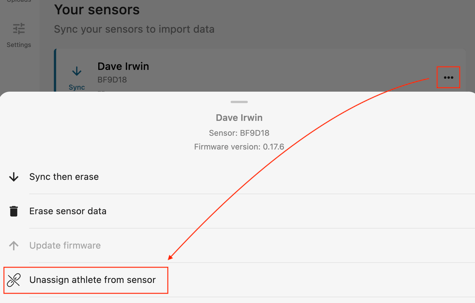
- To change the reassign the sensor to a different athlete, first click or tap on the three dots to the right
- Click or tap the Unassign athlete from sensor option
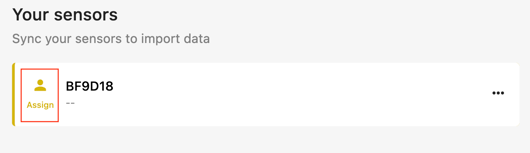
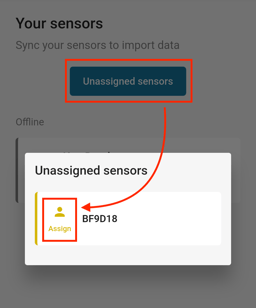
- On the computer, you will see the sensor will now have an Assign option. On mobile, tap on the Unassigned sensors button to see the Assign option. Tap or click on the Assign option.
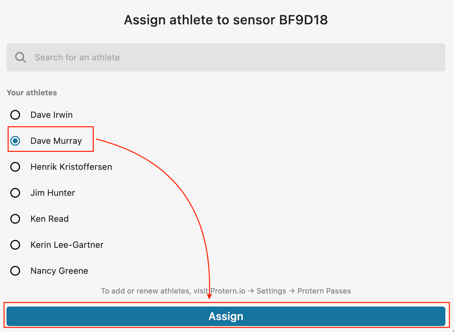
- Select the name of the new athlete you want to assign to the sensor and press the Assign button at the bottom of the app.