---
title: How to update the TimeLink LTC Generator
description: Video and detailed steps on how to update a TimeLink LTC generator by Protern.io
---
[Skip to content](https://support.protern.io/how-to-update-the-timelink-ltc-generator#main-content)
English
Show submenu for translations
[Contact us](https://support.protern.io/kb-tickets/new?hsLang=en)
![proternio-logo-dark-transbkg.png\]](https://support.protern.io/hs-fs/hubfs/proternio-logo-dark-transbkg.png?height=40&name=proternio-logo-dark-transbkg.png)
Open main navigation
Close main navigation
- English
Show submenu for translations
- [Contact us](https://support.protern.io/kb-tickets/new)
- Go to protern.io
Go to protern.io
Hello. How can we help you?
- There are no suggestions because the search field is empty.
1. [Support Centre](https://support.protern.io/?hsLang=en)
2. [TimeLink LTC Generator](https://support.protern.io/timelink-ltc-generator?hsLang=en)
# How to update the TimeLink LTC Generator
## Here's how to update the firmware on your TimeLink LTC Generator.
### Requirements
To get started, here is what you will need:
- TimeLink LTC Generator
- USB-C cable
- Computer
- WebUSB compatible browser: Google Chrome, MS Edge or Opera browser (Safari does not support WebUSB)
- Internet connection
### How to update your TimeLink
1. Open a browser and navigate to [https://update.protern.io](https://update.protern.io)
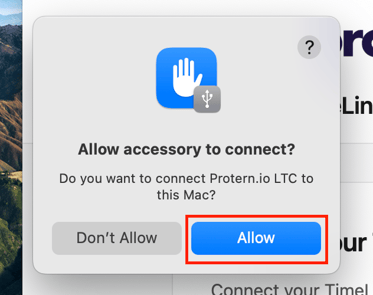
2. Plug in the TimeLink to your computer. Mac users may get a prompt asking them to connect to an accessory. Click *Allow*.
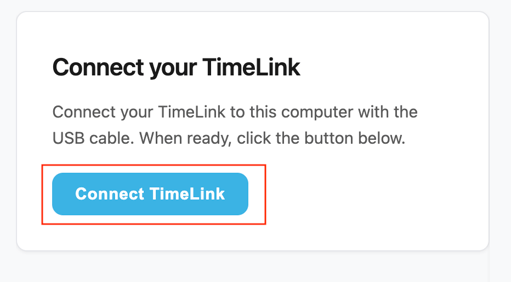
3. Click Connect TimeLink
4. A window in your browser will open that will show you the available devices. If you don't see your TimeLink, just wait a few moments. If you still don't see it, try unplugging and replugging it back in. Alternatively, try a different USB cable.
5. Select *Protern.io LTC* and *Connect
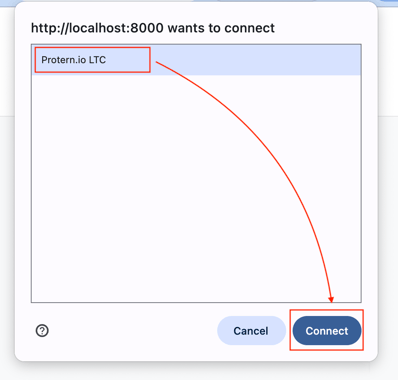*
6. Confirm the current firmware version and click *Update firmware
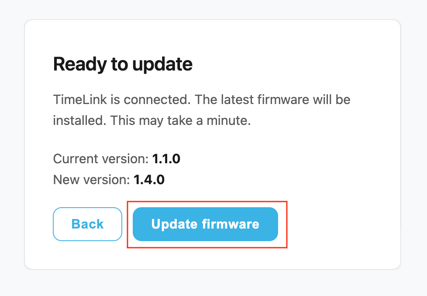*
7. The TimeLink will now turn off (LED furthest to the left is the power) and apply the update. This may take 10-15 seconds. 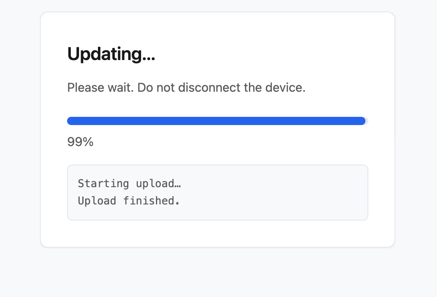
8. Your TimeLink is now updated. If you have more than one TimeLink, press *Start Over* and plug in your next device.
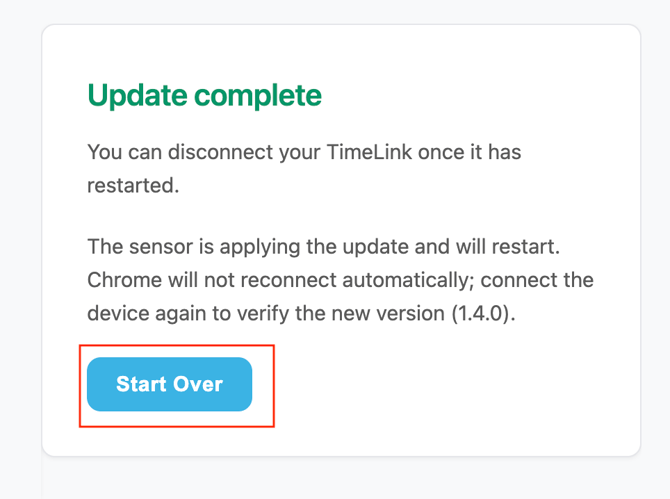
**Tip:** You can confirm the update has happened, but proceeding through to step 6 to see the current firmware.
- [Getting started with Protern.io](https://support.protern.io/getting-started-with-protern-io?hsLang=en#main-content)
- [Tips for Getting the Most Out of Protern.io](https://support.protern.io/getting-started-with-protern-io?hsLang=en#tips-for-getting-the-most-out-of-protern-io)
- [Protern Sync for Mobile and Desktop](https://support.protern.io/protern-sync-for-mobile-and-desktop?hsLang=en#main-content)
- [Protern Sync for PC and Mac Computers](https://support.protern.io/protern-sync-for-mobile-and-desktop?hsLang=en#protern-sync-for-pc-and-mac-computers)
- [Protern Sync for iOS and Android](https://support.protern.io/protern-sync-for-mobile-and-desktop?hsLang=en#protern-sync-for-ios-and-android)
- [Tips and Troubleshooting](https://support.protern.io/protern-sync-for-mobile-and-desktop?hsLang=en#tips-and-troubleshooting)
- [Video and Protern.io data](https://support.protern.io/video-and-protern-io-data?hsLang=en#main-content)
- [Protern Video - Data-Enhanced Video](https://support.protern.io/video-and-protern-io-data?hsLang=en#protern-video-data-enhanced-video)
- [Syncing a Video Camera with Protern Data](https://support.protern.io/video-and-protern-io-data?hsLang=en#syncing-a-video-camera-with-protern-data)
- [Telemetry Overlay and Protern](https://support.protern.io/video-and-protern-io-data?hsLang=en#telemetry-overlay-and-protern)
- [Tips for Video Analysis](https://support.protern.io/video-and-protern-io-data?hsLang=en#tips-for-video-analysis)
- [Protern Cloud Video Sharing](https://support.protern.io/video-and-protern-io-data?hsLang=en#protern-cloud-video-sharing)
- [TimeLink LTC Generator](https://support.protern.io/timelink-ltc-generator?hsLang=en)
- [Protern.io Sensor](https://support.protern.io/protern-io-sensor?hsLang=en#main-content)
- [Updating Protern.io Sensors](https://support.protern.io/protern-io-sensor?hsLang=en#updating-protern-io-sensors)
- [Troubleshooting](https://support.protern.io/protern-io-sensor?hsLang=en#troubleshooting)
- [Quantriqs](https://support.protern.io/quantriqs?hsLang=en#main-content)
- [Troubleshooting](https://support.protern.io/quantriqs?hsLang=en#troubleshooting)
- [Protern.io Accounts](https://support.protern.io/protern-io-accounts?hsLang=en#main-content)
- [Managing Athletes](https://support.protern.io/protern-io-accounts?hsLang=en#managing-athletes)
[](https://protern.io)
Support Centre
Copyright © 2026, Protern.io