
If you can't see any runs after syncing your Protern.io Sensors, it could be the files have not uploaded to the cloud from your device.
There are two steps to get the data from the sensor to the cloud:
- Syncing sensor to the phone -> This uses Bluetooth
- Syncing the phone to the cloud -> This uses your phone's mobile/wifi connection
It is possible that, with a poor Internet or mobile connection, sensor data remains stuck on your phone. Here's how to check that and force it to upload.
Checking the Status of Your Uploads
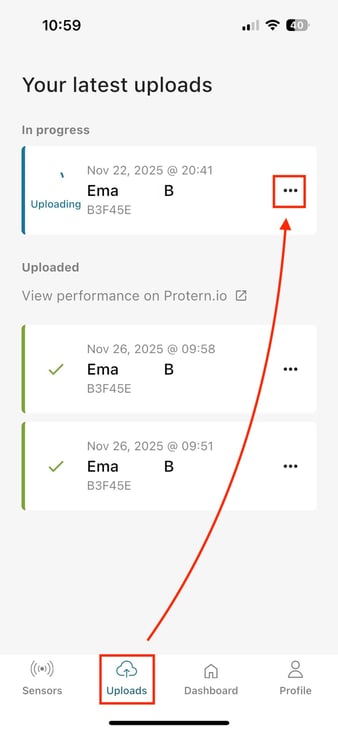
- Open Protern Sync and click on the Uploads tab
- It is possible an upload is stuck in the In Progress section. First cancel the upload by clicking on the three dots and press Cancel.
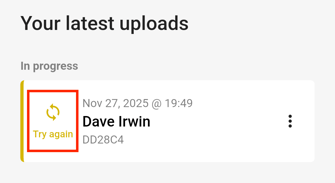
- Now click on the Try Again button to force the app to upload the file.
- Depending on how much data was in the upload, it make take Protern a few minutes to process the data.
All Updates are Successful, But Still No Data
There are two scenarios to check here:
- Was there any sensor data to upload; or
- Did the sensor data not get processed
Checking If There Was Any Sensor Data
The first scenario involves looking at the file sizes of your uploads. This will give you an idea of how many minutes data you should be expecting to see.
- Go to the Uploads section of your Protern Sync app
- For each upload, click on the three dots and look at the file size.
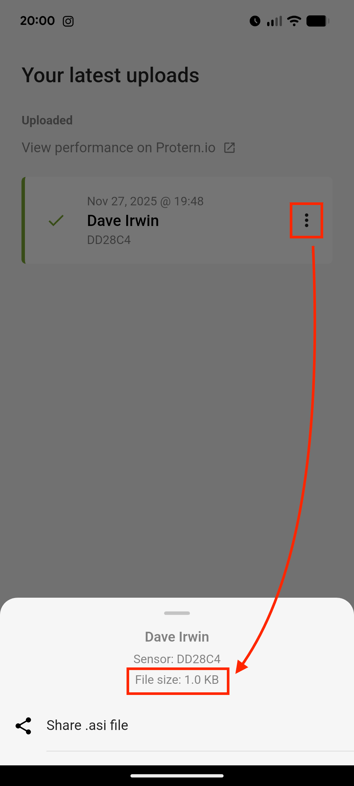
- A basic rule of thumb is 1MB of data equals 1 hour of activity. 1KB of data means there was no data. This is expected if you synced the sensor only moments before.
Manually Uploading Sensor Data
If you see a data file with more than 100KB (i.e. 6 minutes of data) in your uploads, but no corresponding activity in Protern, you can try to manually upload to Protern.
- Click on the Uploads tab in Protern Sync
- Click on three dots beside the sensor data you want to manually upload, and select Share .asi file
-png.png?width=280&height=622&name=Screenshot_20251127-200029%20(1)-png.png)
- Send the ASI file to a computer via WhatsApp, AirDrop, Dropbox, etc.
- Login to Protern on your computer using a browser.
- Click the Upload button and select From File

- Choose ASI for File Type, pick your Athlete, and select the Activity type. Then press Select File and find the ASI file.
- Click Upload
- If the upload is successful, Protern will include a link directly to the activity. If the upload says there was an error, please email support@protern.io.